SRT: The Small Radio Telescope
The Small Radio Telescope (SRT) was developed by Haystack Observatory to serve as an educational tool for universities and colleges for teaching astronomy and radio technology.
NOTE: The SRT software has been newly overhauled and updated—please see below for the latest version.
The original SRT was popular, with several hundred being built and is still in use at many colleges. It is no longer available new, however, and advances in electronics have rendered the original obsolete. Development of a new SRT was undertaken by Haystack in 2012.
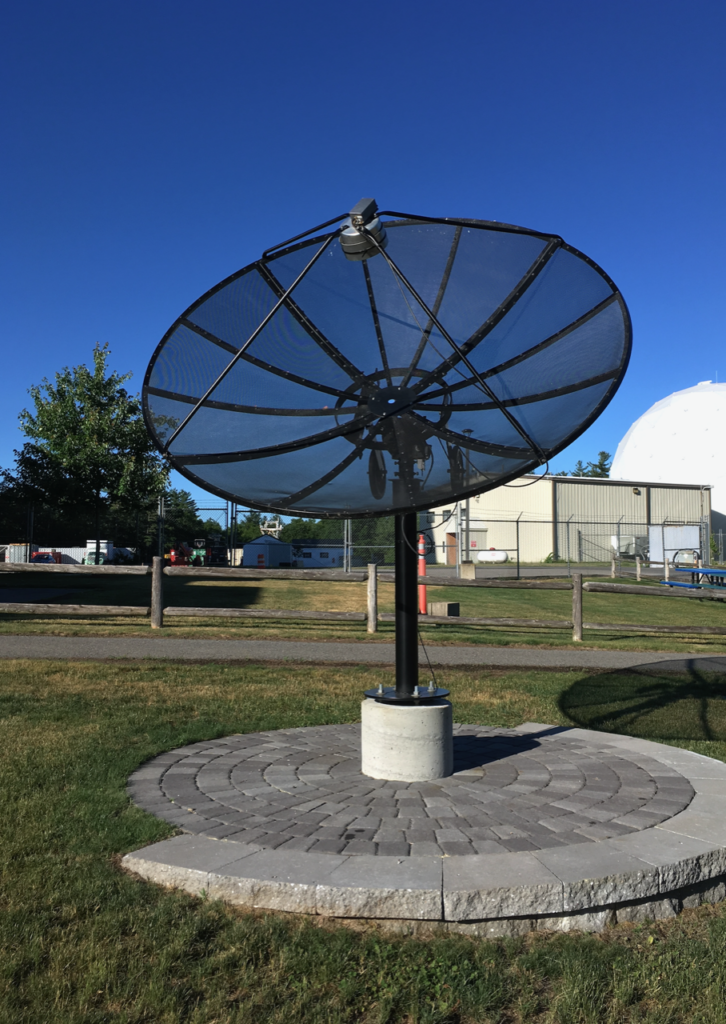
The primary philosophy of the latest design for the SRT is that the users should build the telescope themselves from commercially available equipment, based on plans, instructions, and software provided by Haystack. It is designed to be assembled easily with minimal need for special tools or skills. This approach provides an educational opportunity to the users who build the telescope. Also, users of the SRT will be more familiar with how it works if they assemble it themselves, allowing better in-house technical assistance.
The SRT is no longer available as a kit from Cassi Corp. If you decide to build an SRT, we recommend using the TV dongle version of the New SRT using parts list provided below.
The SRT wiki site
SRT Memo Series
SRT assembly information
Current SRT software
The SRT has been recreated as a Python-based interface, using various open-source tools, including GNU Radio and astropy, available on the Haystack GitHub repository:
https://github.com/MITHaystack/srt-py
Previous SRT software
We provide software, similar in appearance to the original SRT software but written in C instead of Java and running under Linux instead of Windows. Source code is available here:
- SRT program downloads
- updated pswriter code (source code)
- pswriter instructions (pdf)
- SRT Software Installation Dependencies (pdf)
- SRT Source Code ver 9 (gzip’d tar file)
- SRT Source Code ver 8 (gzip’d tar file)
- SRT Source Code ver 7 (gzip’d tar file)
- SRT Source Code ver 6 (gzip’d tar file)
- SRT Source Code ver 5 (gzip’d tar file)
- SRT Source Code ver 4 (gzip’d tar file)
- SRT Source Code ver 3 (gzip’d tar file)
- SRT Source Code ver 2 (gzip’d tar file)
- SRT Source Code initial version (gzip’d tar file)
Legacy SRT software
Users of the previous model SRT can download the SRT/VSRT Software (version 7.5) and the SRT Software Installation guide.
SRT reports
- Final Report 2013 by Marc Higginson-Rollins and Alan Rogers (pdf) (We recommend building your SRT using a TV dongle for new SRTs as described in this report.)
- Block diagram and parts list for SRT using TV dongle
- Final Report 2012 by Dustin Johnson and Alan Rogers (pdf)
SRT Publications
Oberoi, D., E. R. Evarts, and A. E. E. Rogers. “High temporal and spectral resolution interferometric observations of unusual solar radio bursts.” Solar Physics 260, no. 2 (2009): 389-400. DOI: https://doi.org/10.1007/s11207-009-9459-x
Ballard, S., R. Harris, L. Lanz, B. Maruca, and D. Muñoz, “Astronomy 218/Haystack project report,” Harvard University (2007) (pdf)
Salah, J. E.; Pratap, P.; Rogers, A. E. E. 2003, “The Educational Role of Small Telescopes in Radio Astronomy,” The Future of Small Telescopes In The New Millennium. Volume II—The Telescopes We Use. Terry D. Oswalt, ed.; Astrophysics and Space Science Library, Volume 288, Dordrecht: Kluwer Academic Publishers, 323-336
Pasachoff, J.M. 2002, “Haystack radio telescope,” American Journal of Physics, 70(10): 983
MEETING PRESENTATIONS
Oiler, J. K.; Rogers, A. E.; Oberoi, D., 2006, American Geophysical Union, Fall Meeting 2006, abstract #SH23A-0342, 2006AGUFMSH23A0342O (pdf)
Evarts, E. R.; Rogers, A. E. E.; Pratap, P. 2005, ” Using Small Radio Telescopes for VLBI-mode Interferometry”, American Astronomical Society, 2005AAS…207.6608E (pdf)
Johnson, W.; Pratap, P. 2005, “Classroom Experience with the Small Radio Telescope”, American Astronomical Society, 2005AAS…207.6503J
Vats, D.; Rogers, A. 2004, ” Development and Testing of a New SRT Receiver”, American Astronomical Society, 2004AAS…20515205V (pdf)
Gobeille, D. B. P., Rogers, A. E. E., Ball, J. A., Pratap, P. 2004, “Interferometry on the Sun using a Yagi-Uda Array and a Small Radio Telescope (SRT)”, American Astronomical Society, 2003AAS…203.1914G (pdf)
Altenhof, M., Berlin, D., Pratap, P., Erickson, P. 2002, “Solar and Geomagnetic Investigations: High School Astronomy Unit Focusing on the Sun/Earth Connection”, Bulletin of the American Astronomical Society, Vol. 34, p.1196
Whalley, D., Pratap, P., 2001 “Building and Using Small Radio Telescope at a Technical High School”, Bulletin of the American Astronomical Society, Vol. 34, p.560
Pratap, P., Ball, J. A., Rogers, A. E. E. 2001, "A Small Radio Telescope Interferometer at MIT Haystack Observatory”, Bulletin of the American Astronomical Society, Vol. 33, p.1342
Cobb, M. L., Pratap, P., Rogers, A. E. E. 2000, “A Small Radio Telescope for Education”, Bulletin of the American Astronomical Society, Vol. 32, p.1560
Kimball, L.; Pratap, P. 1998, “A Small Radio Telescope for Undergraduate Instruction”, Bulletin of the American Astronomical Society, Vol. 30, p.1294
STUDENT PAPERS
Oiler, J., Rogers, A.E.E., 2007, “Analysis of Limb Brightening on the Quiet Sun at 21 CM Using a Three-Element Interferometer,” the MIT Haystack Observatory REU Program final report. (pdf)
Evarts, E. 2006, “Discovery of frequency-sweeping millisecond solar radio bursts near 1400 MHz with a small interferometer”, Physics Department Senior Honors Thesis, Brandeis University. (pdf)
Atiani, S. 2006, “Constructing a Radio Interferometer”, Physics Department, Guilford College. (pdf)